Export & Back Up Your Collections
Put your whole catalogue into files anyone can open — no app required.
What you can export
Everything lives in Settings, and each export takes about a minute. Need a List can hand your collections over in three formats — you can make all three, and they work well together:
Insurance report (PDF)
A photo-rich document of every item with values and dates. Opens on any phone or computer — perfect for sharing with family, or for insurance.
Spreadsheet (CSV)
Every item as a row — name, value, purchase price, location, tags, and more. Opens in Excel, Numbers, or Google Sheets. No app needed.
Full backup (.needalist)
One file with every collection, item, and photo. This one restores back into Need a List — handy if someone wants to keep the catalogue going.
Step by step
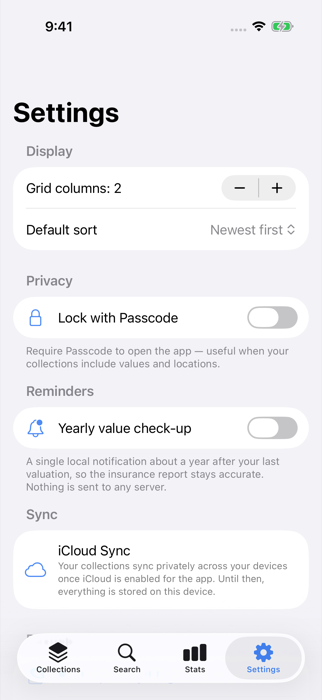
Open the Settings tab
Launch Need a List and tap Settings in the bottom-right corner of the screen.
Scroll to Backup and Data
Scroll down until you see the Backup and Data sections. These hold all the export options:
- Back up everything — the full .needalist backup
- Export insurance report (PDF)
- Export everything as CSV
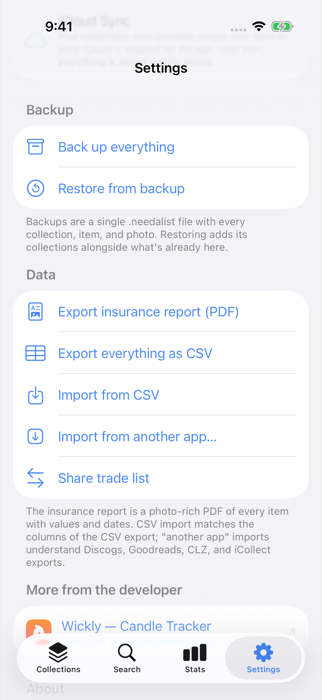
Tap “Back up everything”
The app packs every collection, item, and photo into a single file called Need a List backup.needalist and opens the share sheet. From here you can AirDrop it to a Mac, send it to yourself, or save it into the Files app.
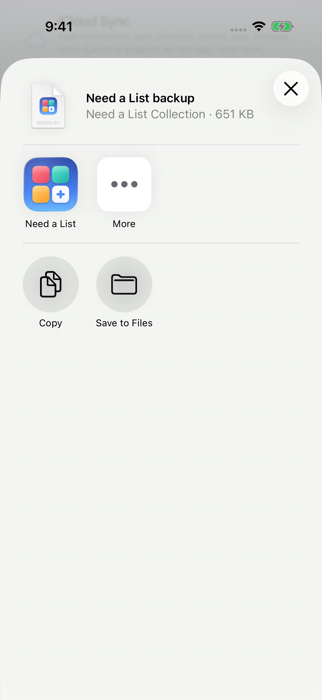
Choose “Save to Files”
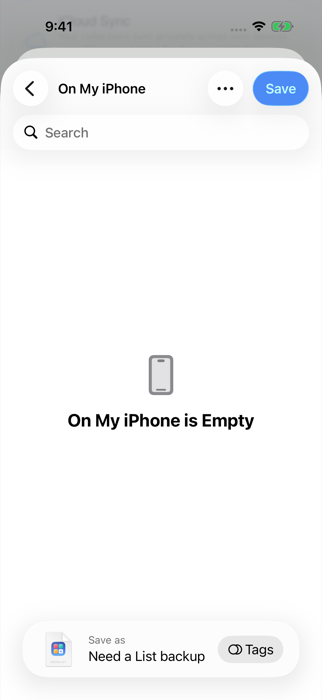
Pick a folder — On My iPhone or iCloud Drive — and tap Save. If you have a flash drive plugged into your iPhone or iPad, it shows up right here as a location, so you can save straight onto the drive.
Export the PDF report
Back in Settings, tap Export insurance report (PDF). You get a photo-rich PDF of every item with its values and dates — save it the same way. Anyone can open a PDF; no app required.
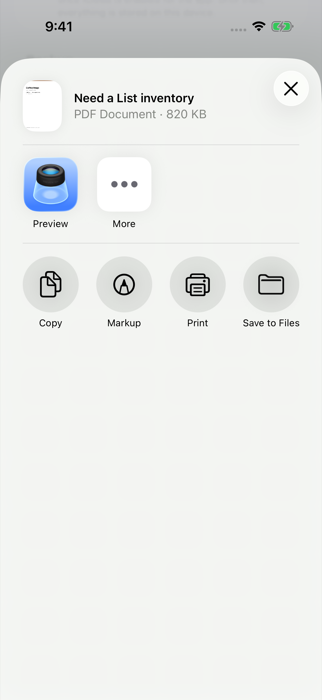
Export the CSV spreadsheet
Finally, tap Export everything as CSV and save that file too. It opens in Excel, Numbers, or Google Sheets, with columns for collection, name, description, status, quantity, value, purchase price, tags, location, barcode, and the date added.
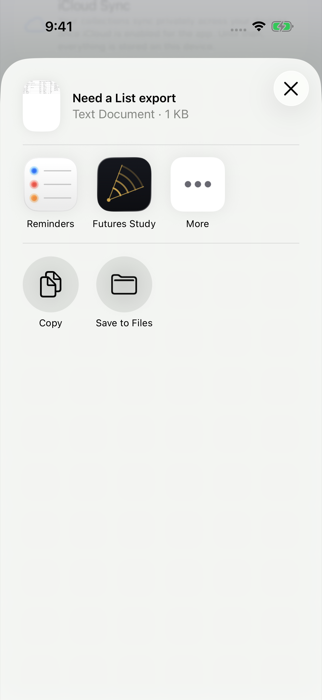
Getting the files onto a flash drive
Three easy routes — pick whichever matches the gear you have:
- Plug a flash drive into your iPhone or iPad. Any USB-C flash drive works with recent iPhones and iPads (older ones need a Lightning adapter). The drive appears as a location in the Files app, so in step 4 you can save your exports directly onto it.
- Via a Mac. In the share sheet, choose AirDrop and send the files to your Mac, then copy them to the flash drive from there.
- Via any computer. Save the exports to iCloud Drive (step 4), then open iCloud.com on the computer, download the files, and copy them to the drive.
Common questions
Will my family need the app to see my collection?
No. The PDF and CSV open on any computer, tablet, or phone with no special software. Only the .needalist backup needs the app — include it anyway, so the full catalogue with photos can be restored if they ever want it.
Are my photos included?
The PDF report includes item photos, and the .needalist backup contains every photo at full quality. The CSV is text only — that’s what makes it a spreadsheet.
Does exporting change or delete anything?
No. Exports are copies — your collections stay untouched on your device (and in your private iCloud sync, if enabled).
How do I restore a backup?
On any device with Need a List installed: Settings → Restore from backup, then pick the .needalist file. Restoring adds its collections alongside whatever is already there.